Transactions
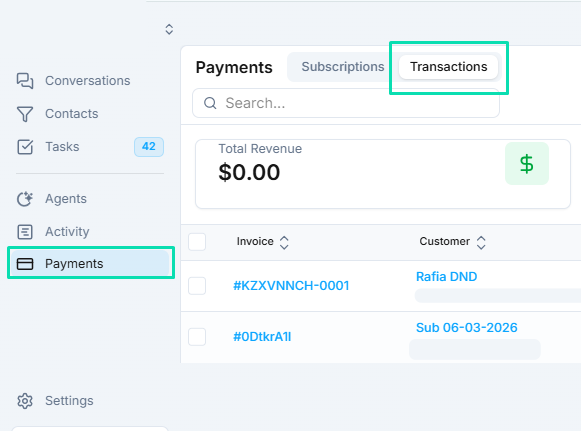
Track every payment event, including charges, refunds, and disputes. Filter by date range (e.g., Last Month) for audits or reconciliation.
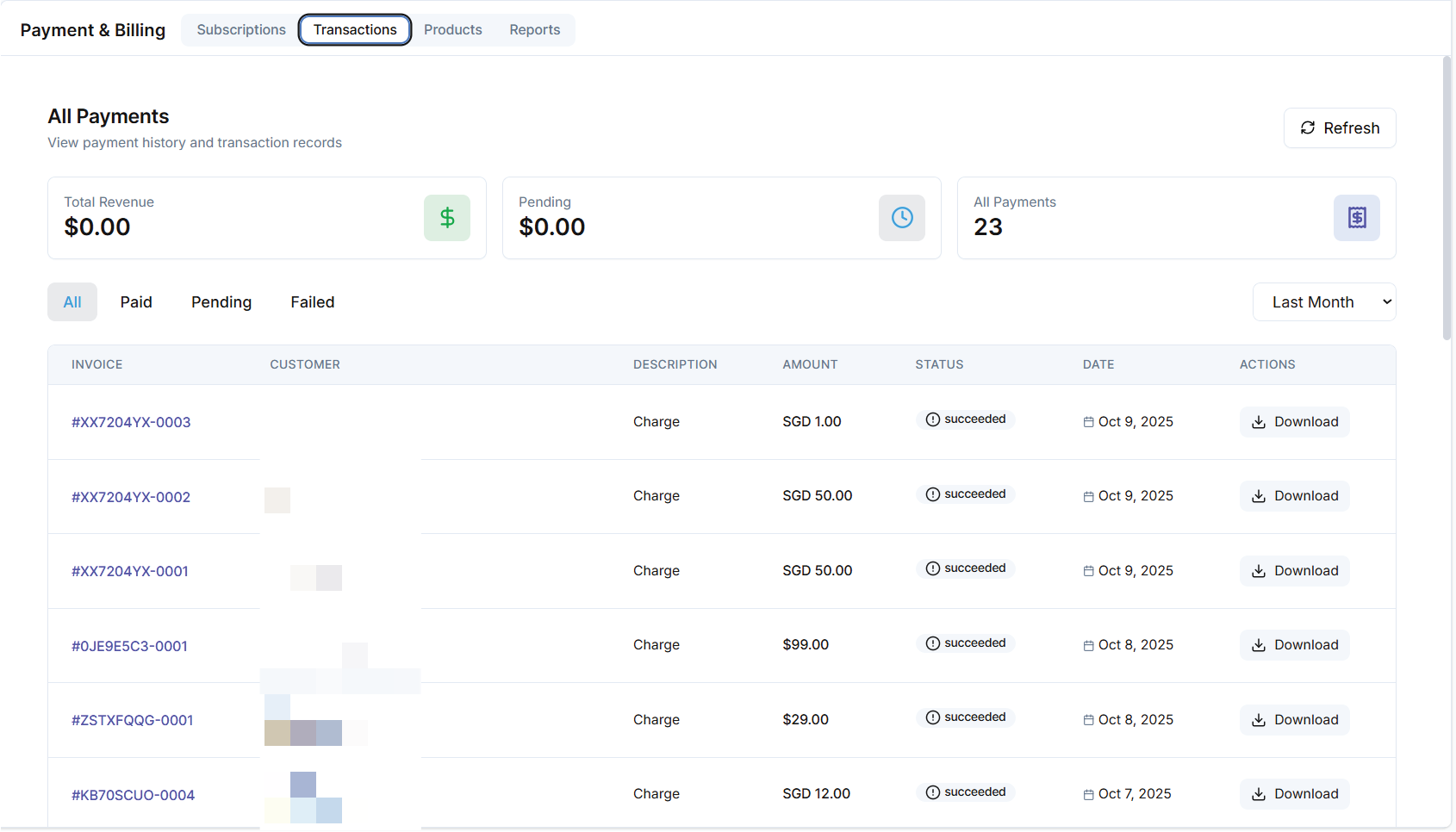
UI Elements
| Column | Description | Example |
|---|---|---|
| Invoice ID | Unique transaction identifier. | INV-0001 |
| Pending | Status indicator (Pending with yellow icon). | - |
| Failed | Status indicator (Failed with red icon). | - |
| Customer | Linked customer name or ID. | Steve Yang |
| Description | Brief note on the transaction type. | Charge |
| Amount | Transaction value (positive for charges, negative for refunds). | $100.00 |
| Status | Overall state (e.g., Succeeded with green check). | Succeeded |
| Date | Timestamp of the event. | Oct 8, 2025 |
| Actions | Download receipt or view details. | [Download] |
Summary Metrics (Top of Tab)
-04b58a10dc4d98924211d3997e72bb17.png)
- Total Revenue: Aggregated successful amounts (e.g., $0.00 if no data).
- Pending/Failed: Counts and icons for quick status checks.
- All Payments: Total count (e.g., 23).
- Last Month: Filter button for historical views.
Actions
- Filter: By status, date, or customer using dropdowns.
- Refresh: Pulls latest gateway data.
- Download: Export individual receipts or full reports.
- Dispute/Refund: Initiate from the Actions menu (requires gateway integration).
Common Use Cases
- Monthly Reconciliation: Filter "Last Month" and export for accounting software.
- Fraud Detection: Review "Failed" or "Pending" for patterns.